

AI infrastructure · Kubernetes · vLLM · KEDA · Autoscaling
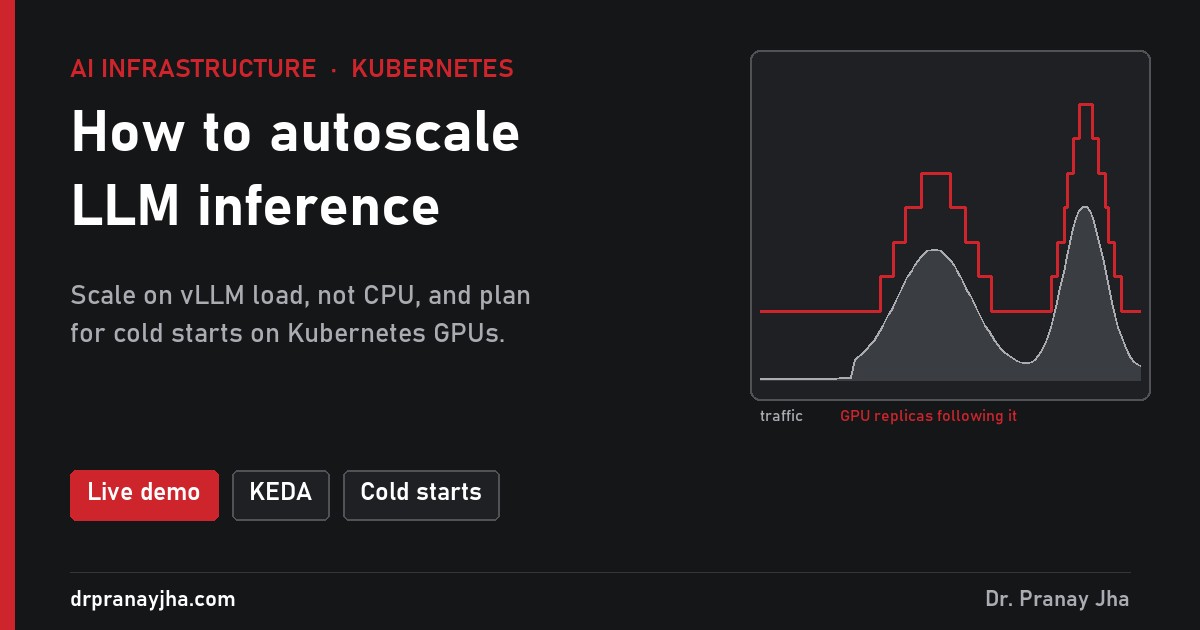
In the cost post, scaling inference with traffic was the single biggest saving. It is also where teams get burned: the default autoscaler watches the wrong number, and a new GPU replica can take ten minutes to start. This post shows which metric to scale on, why cold starts decide everything, and when scale-to-zero is a good idea. The live demo runs a whole day of chatbot traffic through four scaling policies.
A day of chatbot traffic, vLLM on up to 8 GPUs. Switch between four scaling policies, change the model size, add a warm spare and send a traffic spike.
The resultFour policies, one day of traffic
Same traffic, same 70B model, a spike during the evening peak. GPU cost per day at $3 per GPU-hour, and the share of requests slower than 3 seconds:
The CPU autoscaler is the cheapest because it never scales up, and three-quarters of users wait. Scaling on vLLM’s own load saves about 40% against fixed sizing, but a spike still hurts while new replicas load the model. The last line is the usual answer: scale on the right metric and make starting a replica faster.
The metricScale on what the model server sees
An LLM server spends its time on the GPU. The CPU only handles requests and tokenising, so it sits at 20 to 30% even when the GPU is full and users are queueing. Scale on the server’s own queue instead.
vllm:num_requests_running + vllm:num_requests_waitingRequests in flight per replica. Rises the moment the replicas fall behind. Set a target below the point where latency climbs.
vllm:gpu_cache_usage_percHow full the KV cache is. Near 100% means vLLM starts pausing requests. Newer vLLM versions call it vllm:kv_cache_usage_perc.
cpuBarely moves. The default HPA on CPU never scales a GPU-bound server.
DCGM_FI_DEV_GPU_UTILReads close to 100% at moderate load, as explained in part 1. It cannot tell “busy” from “overloaded”.
The catchA new replica takes minutes, not seconds
A web pod starts in seconds. A GPU replica has to find a GPU, pull a large image and load the model into GPU memory. Rough times for a 70B model when no GPU node is free:
Every minute of cold start is a minute of users waiting during a spike. So shorten it, or start earlier:
Set the target per replica well below the breaking point, so new replicas start while there is still headroom.
One extra replica always loaded. In the demo it cut lost requests during the spike from 383 to 103 for the 70B model, and to none for the 8B model, for about $66 a day.
Traffic peaks at the same time every day. Add a scheduled rule that adds replicas before the evening rush.
Scale to zeroGreat for some services, wrong for others
- Internal tools used a few times a day
- Batch or overnight jobs
- Demos and test environments
- Users accept a slow first answer
- Customer-facing chat
- Anything with a latency promise
- Large models with long cold starts
- Traffic arrives in sudden bursts
The setupvLLM, Prometheus and KEDA
-
Let Prometheus scrape vLLM
vLLM publishes its metrics on
/metricson the same port as the API. Add a ServiceMonitor for the vLLM service, as in part 1. -
Install KEDA
helm repo add kedacore https://kedacore.github.io/charts helm repo update helm install keda kedacore/keda -n keda --create-namespace -
Scale on vLLM load, plus the evening rush
apiVersion: keda.sh/v1alpha1 kind: ScaledObject metadata: name: vllm-chat spec: scaleTargetRef: name: vllm-chat minReplicaCount: 2 maxReplicaCount: 8 cooldownPeriod: 600 advanced: horizontalPodAutoscalerConfig: behavior: scaleDown: stabilizationWindowSeconds: 600 # wait 10 min before removing a replica triggers: - type: prometheus metadata: serverAddress: http://prometheus.monitoring:9090 query: | sum(vllm:num_requests_running{model_name="chat"}) + sum(vllm:num_requests_waiting{model_name="chat"}) threshold: "14" # in-flight requests per replica - type: cron metadata: timezone: Asia/Singapore start: "0 18 * * *" end: "0 23 * * *" desiredReplicas: "5" # be ready before the peak -
Make replicas start faster
Pre-pull the vLLM image on GPU nodes, keep model weights on a local NVMe cache or a fast shared volume, and set a readiness probe on
/healthso traffic only arrives once the model is loaded.
- The autoscaler watches vLLM’s queue, not CPU.
- You have measured your real cold start, from “scale up” to “first request served”.
- The scaling target leaves enough headroom to cover that cold start.
- Scale-down waits long enough that replicas do not flap.
- Customer-facing models never scale to zero.
- Predictable peaks are covered by a scheduled rule.
Open GPU Autoscaling Lab, pick “Scale on vLLM load”, and send a spike with the 70B model. Then switch to the 8B model with a warm spare and send it again.
The series so far: monitoring, logging, node lifecycle, sharing, scheduling, cost and this post on autoscaling. Next: networking for multi-node training.
About The Author




 DrJha
DrJha