

AI infrastructure · Kubernetes · NVIDIA GPU Operator · Prometheus · Observability
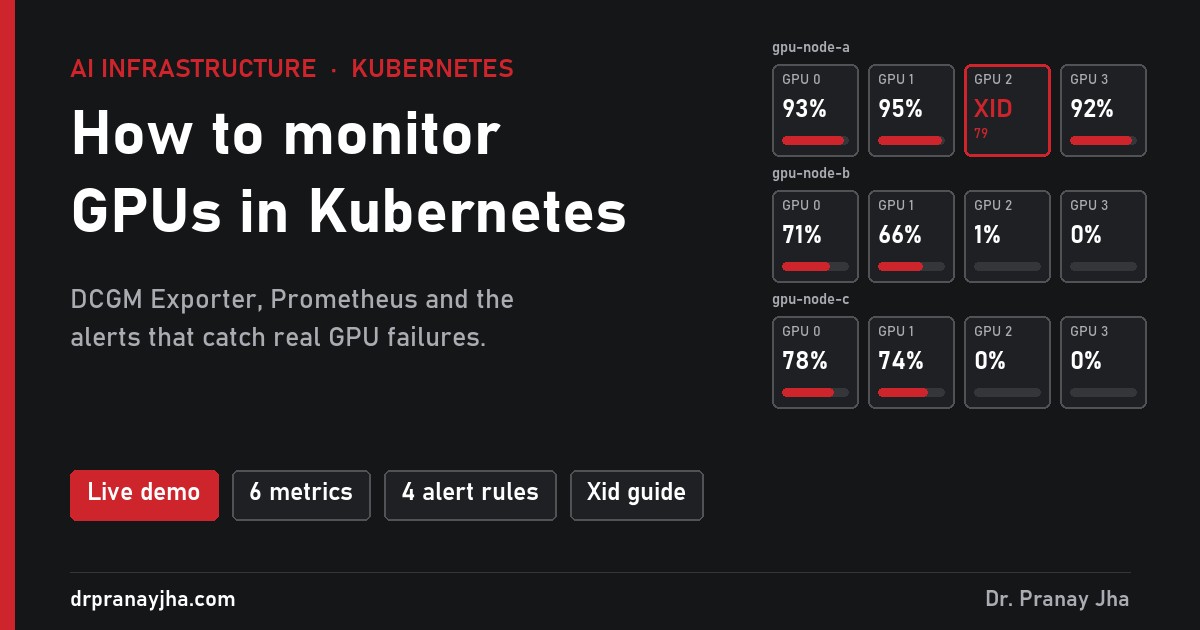
Kubernetes knows that a pod asked for one GPU. It does not know if that GPU is busy, overheating, out of memory or dead. That information sits inside the card, and you have to bring it out yourself. This post shows how the pieces fit, which numbers matter, and the four failures you will see first. I also built a live demo so you can break a cluster and watch the monitoring react.
A simulated 12-GPU Kubernetes cluster in your browser. Click a scenario, such as a fan failure, an Xid error or a job that cannot be scheduled, and watch the metrics, alerts and events change. Nothing to install.
The problemWhy Kubernetes alone is not enough
When you install the NVIDIA device plugin, each GPU node advertises a resource called nvidia.com/gpu. A pod asks for one, two or four of them, and the scheduler finds a node with that many free. That is the whole contract. To Kubernetes a GPU is a counter, like a slot in a car park.
So Kubernetes can tell you how many GPUs are handed out. It cannot tell you what happens to them after that. A pod can hold an H100 for a week and use none of it. A card can run at 88 °C and quietly slow down your training job. A GPU can drop off the PCIe bus, and the only sign is a line in the kernel log. You need three layers of information, and they come from different places.
Requests, free GPUs per node, pods stuck in Pending. Comes from the Kubernetes API.
kube-state-metricsTemperature, power, clocks, ECC and Xid errors. Comes from the GPU driver.
DCGM ExporterUtilisation, memory, tensor-core activity, each tagged with the pod that owns the GPU.
DCGM Exporter + pod labelsThe pipelineHow the numbers get from the card to your dashboard
The standard setup has four parts. The NVIDIA GPU Operator installs most of them for you: the driver, the container toolkit, the device plugin and the DCGM Exporter. You add Prometheus and Grafana, usually with the kube-prometheus-stack Helm chart.
The exporter asks the kubelet which pod owns each GPU, so every metric carries pod and namespace labels. That one join is what turns hardware numbers into something you can charge back to a team.
Two details are easy to miss. First, the exporter runs as a DaemonSet, one pod per GPU node, and only on nodes that have GPUs. Second, Prometheus only scrapes it if a ServiceMonitor exists and the Prometheus instance is allowed to pick it up. That second point is the usual reason people install everything and see no GPU metrics at all.
The numbersSix metrics worth a panel each
The DCGM Exporter publishes dozens of fields. These six answer most questions. Every name below is the real Prometheus series name, and every one is shown live in the demo.
Share of time in the last sample when at least one kernel was running. Good for spotting idle cards. Misleading for spotting busy ones (see below).
Framebuffer in use. Pair it with DCGM_FI_DEV_FB_FREE to get a percentage. vLLM grabs about 90% at start-up by default, so a flat high line on an inference pod is normal.
Core temperature. When a card gets too hot the driver lowers its clocks to protect it, and the job just runs slower. Nothing crashes.
Real-time board power. An H100 SXM is rated at 700 W. Power is a good second opinion on utilisation: a card that is truly busy draws close to its limit.
The speed the compute cores are running at. It drops when the card throttles for heat or power. The throttle-reason field tells you which.
The driver’s error code for the last GPU fault. Zero means no error. Any other value needs a look, and some values mean the hardware is broken.
The utilisation trap
GPU_UTIL answers “was anything running?”, not “how much of the card was used?”. One small kernel running all the time scores 100%, even if it touches a tiny part of the chip. For a truer picture, the exporter also publishes profiling fields on data-centre GPUs, such as DCGM_FI_PROF_SM_ACTIVE and DCGM_FI_PROF_PIPE_TENSOR_ACTIVE.
An illustrative example of one inference pod with small batches. The dashboard says “full”. The tensor cores, which are what you paid for, are mostly idle. Larger batches would fix it.
The failuresFour things you will see in your first month
Each of these is a button in the demo. Read the card, then open the demo and trigger it.
avg_over_time(DCGM_FI_DEV_GPU_UTIL{pod!=""}[30m]) < 5notebook-research-2. Click Delete idle notebook to clear it.kube_pod_status_unschedulable == 1 and the event Insufficient nvidia.com/gpu.DCGM_FI_DEV_GPU_TEMP > 85 with a falling DCGM_FI_DEV_SM_CLOCK.DCGM_FI_DEV_XID_ERRORS > 0, then the series for that GPU stops. The node’s allocatable GPUs drop from 4 to 3.Which Xid errors mean broken hardware
Xid codes come from the NVIDIA driver and also appear in dmesg. Some point at your code, some at the card. A short list that covers most cases:
The setupBuild it on your own cluster
This assumes a Kubernetes cluster with at least one NVIDIA GPU node and Helm installed. The steps are in order: each one needs the one before.
-
Install Prometheus and Grafana
The last flag lets Prometheus pick up ServiceMonitors from other Helm releases, including the GPU Operator’s. Without it you get no GPU metrics.
helm repo add prometheus-community https://prometheus-community.github.io/helm-charts helm repo update helm install kps prometheus-community/kube-prometheus-stack \ -n monitoring --create-namespace \ --set prometheus.prometheusSpec.serviceMonitorSelectorNilUsesHelmValues=false -
Install the GPU Operator with its ServiceMonitor on
helm repo add nvidia https://helm.ngc.nvidia.com/nvidia
helm repo update
helm install gpu-operator nvidia/gpu-operator \
  -n gpu-operator --create-namespace --wait \
  --set dcgmExporter.serviceMonitor.enabled=true
If your nodes already have the NVIDIA driver installed, add
--set driver.enabled=false. -
Check that the exporter is publishing
kubectl -n gpu-operator port-forward svc/nvidia-dcgm-exporter 9400:9400 &
curl -s localhost:9400/metrics | grep DCGM_FI_DEV_GPU_UTIL
You should see one line per GPU, with
gpu,UUID,Hostnameand, for GPUs in use,podandnamespacelabels. -
Add the alert rules
These are the four rules the demo uses. Apply them with
kubectl apply -f gpu-alerts.yaml. Therelease: kpslabel is what the Prometheus from step 1 looks for.apiVersion: monitoring.coreos.com/v1 kind: PrometheusRule metadata: name: gpu-alerts namespace: monitoring labels: release: kps spec: groups: - name: gpu rules: - alert: GPUXidError expr: DCGM_FI_DEV_XID_ERRORS > 0 labels: {severity: critical} annotations: summary: "Xid {{ $value }} on {{ $labels.Hostname }} GPU {{ $labels.gpu }}" - alert: GPUThermalThrottle expr: DCGM_FI_DEV_GPU_TEMP > 85 for: 5m labels: {severity: warning} - alert: GPUAllocatedButIdle expr: avg_over_time(DCGM_FI_DEV_GPU_UTIL{pod!=""}[30m]) < 5 for: 30m labels: {severity: info} - alert: GPUPodUnschedulable expr: kube_pod_status_unschedulable == 1 for: 10m labels: {severity: warning} -
Import a dashboard
In Grafana, go to Dashboards → New → Import and enter ID
12239, the NVIDIA DCGM Exporter dashboard. It is a good start. Add a panel per team usingsum by (namespace) (DCGM_FI_DEV_GPU_UTIL)so people can see their own usage.
nvidia-smi -q -d TEMPERATURE on a node to see the real limits for your cards, and set the alert a few degrees below.- Every GPU node has a running
nvidia-dcgm-exporterpod. - Prometheus shows the exporter as a healthy target under Status → Targets.
- GPU metrics carry
podandnamespacelabels for GPUs in use. - The Xid alert goes to a person, not just a channel.
- You have an alert for a GPU that stops reporting, not only for one that reports an error.
- Each team can see its own GPU usage and idle time.
Open GPU Cluster Watch and run all four failures in two minutes. Every chart shows the exact PromQL query behind it, so you can copy it into your own Grafana.
Related on this site: AI Infrastructure Lab Workbook (section F covers observability hands-on) and sizing GPUs for Kubernetes.
About The Author





 DrJha
DrJha