

AI infrastructure · Kubernetes · GPU FinOps · Chargeback
Every earlier part of this series ends in the same place: GPUs that are allocated but not working. This post puts a price on it. Using a realistic example of 16 H100s shared by three teams, it shows the one number to track, how to split the bill between teams, what actually saves money, and when buying your own GPUs beats renting them. Every number comes from the live calculator, where you can change the assumptions.
Switch between cloud on-demand, reserved and owned. See each team’s bill, how much pays for idle GPUs, what each saving is worth, and when owning breaks even. Change any assumption.
The one numberCost per useful GPU-hour
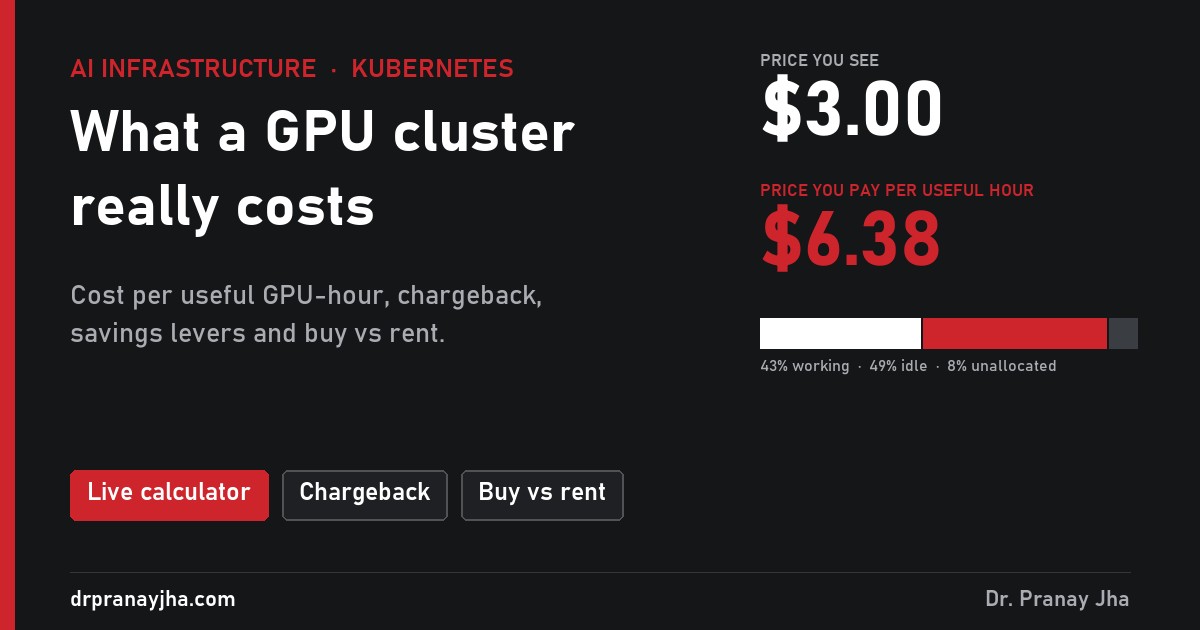
The price list says what one GPU-hour costs. What you actually pay is the bill divided by the GPU-hours that did real work. In the example, renting on demand at $3.00 an hour:
Track this number per team and for the whole cluster. If it is more than double the list price, you have an idle problem, not a pricing problem, and no discount will fix it.
Where the money goes
Research holds 8 GPUs at 62% busy. Product holds 6 for its chatbot at 35% busy, because it is sized for the evening peak. Platform’s notebooks hold 2 GPUs at 12% busy. That idle half costs about $17,000 a month on demand.
Paying for itThree ways to pay, three different rules
You pay for hours a GPU is allocated. Release it and the meter stops. GPU clouds charge roughly $2 to $4 for an H100; the big hyperscalers usually charge more.
A 1 to 3 year commitment for a lower rate. Here, 40% off. The catch: you pay every hour of the term, used or not.
Buy two 8-GPU servers, then pay for power, rack space and people. Cheapest per hour, but only if the GPUs stay busy for years.
Where the $1.67 comes from
Buy or rentThe break-even is about utilisation, not price
Owning costs $1.67 per hour whether the GPU is busy or not. Renting on demand costs $3.00, but only for hours you hold. So owning wins when you hold the GPUs more than 1.67 ÷ 3.00, which is about 56% of the time. In the example the teams hold them 93% of the time, so owning pays for itself in about 21 months.
Owning starts with $480,000 of hardware, then about $9,500 a month to run. Renting at this usage is about $32,400 a month. If usage fell below about 56%, the red line would stay under the black one.
Splitting the billChargeback: by allocation or by use?
Each team pays for every GPU-hour it held, busy or not. Idle GPUs show up on the bill of the team holding them, which is the incentive to give them back.
The whole bill is split by GPU-hours that did work. Feels fair to light users, but a team holding idle GPUs pays almost nothing for them, so nothing changes.
Start with showback: send each team its number every month without moving money. Most of the savings come from teams simply seeing their idle hours.
Measuring it from your own cluster
You already have the data from part 1. Allocated hours come from kube-state-metrics, useful hours from the DCGM exporter:
# GPU-hours allocated per namespace over 30 days
sum by (namespace) (
  sum_over_time(kube_pod_container_resource_requests{resource="nvidia_com_gpu"}[30d:5m])
) * 5 / 60

# GPU-hours of real work per namespace over 30 days
sum by (namespace) (
  sum_over_time((DCGM_FI_DEV_GPU_UTIL{namespace!=""} / 100)[30d:5m])
) * 5 / 60
Multiply each by your hourly rate. Tools such as OpenCost and Kubecost can do this allocation for you, including GPUs, if you would rather not build it.
Cutting itFour levers, worth this much
Values for the example cluster on demand, each lever on its own:
- You report cost per useful GPU-hour, not just the total bill.
- Every team gets a monthly showback with its idle hours in dollars.
- Idle notebooks and dev pods are stopped automatically.
- Inference scales down when traffic drops.
- Reserved or owned capacity covers only the base load you are sure of.
- Before buying hardware, you checked that utilisation will stay above the break-even.
Open GPU Cost Lab, enter your real rate or server price, and switch on the levers to see what each one is worth for you.
The series so far: monitoring, logging, node lifecycle, sharing, scheduling and this post on cost. Next: autoscaling inference.
About The Author



 DrJha
DrJha