

AI infrastructure · Kubernetes · NVIDIA GPU Operator · MIG · MPS
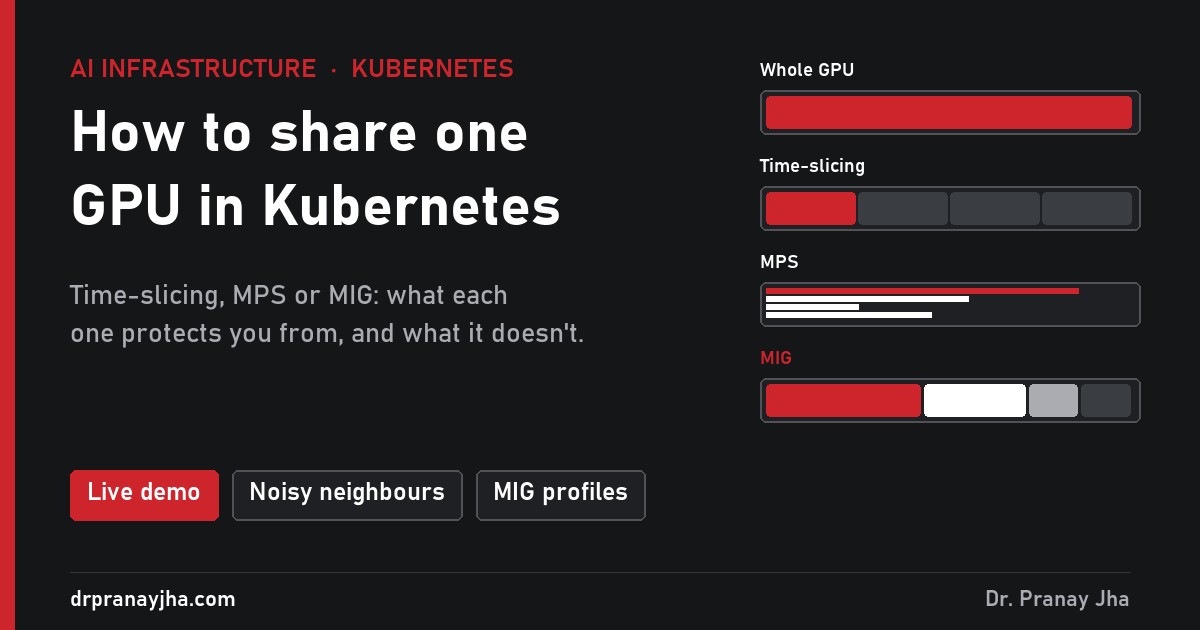
In the monitoring post, one of the first alerts was a GPU sitting idle while a pod held it. The cause is simple: Kubernetes hands out GPUs in whole numbers. A notebook that uses 4% of an H100 still gets the whole card. This post explains the three ways to share one GPU (time-slicing, MPS and MIG), what each one protects you from, and how to pick. There is a live demo where you can put the same workloads on one GPU four ways and break each setup.
Four teams, one simulated 80 GB H100. Switch between a whole GPU, time-slicing, MPS and MIG, then add a noisy neighbour or crash a tenant and watch who suffers.
The problemKubernetes counts GPUs in whole numbers
A pod asks for nvidia.com/gpu: 1. There is no 0.25. So every workload gets a full card, however little it uses. Here is a typical mix of four teams, each holding its own H100:
Four GPUs bought, less than one GPU of work done. At $2 to $4 per H100 hour, that is $6 to $12 an hour paid for idle silicon. Sharing fixes it, but each way of sharing gives up something different.
The optionsThree ways to share, plus the default
The device plugin tells Kubernetes one GPU is, say, four. Four pods land on it and take turns on the whole card, like processes sharing a CPU.
A CUDA server runs the pods’ work at the same time instead of in turns. Each pod gets a cap on compute and memory.
The GPU is cut in hardware into up to seven slices, each with its own compute, memory and cache. Each slice behaves like a small GPU.
| Whole GPU | Time-slicing | MPS | MIG | |
|---|---|---|---|---|
| Pods per GPU | 1 | As many as you set | Up to 48 clients | Up to 7 |
| Run at the same time | n/a | No, take turns | Yes | Yes |
| Memory isolation | n/a | None | Limit per client | Hardware |
| Crash isolation | n/a | Yes | No | Yes |
| Speed guarantee | Full card | None | Ceiling only | Fixed slice |
| Change it | n/a | Edit a ConfigMap | Edit a ConfigMap | Drain the node |
The testsThree things that go wrong, and which mode survives
Each of these is a button in the demo. Run them in every mode and the table above stops being theory.
MIG in detailThe slice sizes on an H100 80GB
An H100 has seven compute slices and eight memory slices of 10 GB. Each MIG profile is named after both: 3g.40gb means three compute slices and 40 GB. You can mix sizes on one card as long as they fit.
1g.10gb1g.20gb2g.20gb3g.40gb4g.40gb7g.80gbThe number on the right is how many of that profile fit on one card if you use only that profile.
nvidia.com/gpu and offers slices such as nvidia.com/mig-2g.20gb instead (with the “mixed” strategy). Pods must ask for the slice by name. Plan which nodes are MIG and which are whole GPUs, and label them so teams know where to go.The choiceWhich one should you use?
The setupTurn it on with the GPU Operator
-
Write a sharing config
Time-slicing and MPS both live in a device plugin config. This one turns each GPU into four.
apiVersion: v1
kind: ConfigMap
metadata:
  name: gpu-sharing-config
  namespace: gpu-operator
data:
  any: |-
    version: v1
    sharing:
      timeSlicing:          # or: mps:
        renameByDefault: false
        resources:
        - name: nvidia.com/gpu
          replicas: 4
With
renameByDefault: truethe shared resource is callednvidia.com/gpu.shared, so pods have to opt in to sharing on purpose. MPS support needs a recent device plugin. -
Point the GPU Operator at it
kubectl apply -f gpu-sharing-config.yaml
kubectl patch clusterpolicies.nvidia.com/cluster-policy --type merge \
  -p '{"spec":{"devicePlugin":{"config":{"name":"gpu-sharing-config","default":"any"}}}}'
After a minute,
kubectl describe nodeshowsnvidia.com/gpu: 4per physical GPU, and GPU Feature Discovery adds a-SHAREDsuffix to the product label. -
Or switch a node to MIG
# once, in the ClusterPolicy
kubectl patch clusterpolicies.nvidia.com/cluster-policy --type merge \
  -p '{"spec":{"mig":{"strategy":"mixed"}}}'

# per node, after draining it
kubectl label node gpu-node-d nvidia.com/mig.config=all-1g.10gb --overwrite
The MIG manager applies the layout and sets
nvidia.com/mig.config.state=success. The lifecycle post shows the drain that has to come first. -
Ask for a share from a pod
# time-slicing or MPS: same as before
resources:
  limits:
    nvidia.com/gpu: 1

# MIG: ask for the slice by name
resources:
  limits:
    nvidia.com/mig-2g.20gb: 1
- You know which workloads may share and which must not.
- Time-sliced GPUs only run work that can survive an out-of-memory crash caused by someone else.
- Nothing that matters shares an MPS server with untrusted code.
- MIG nodes are labelled, and teams know to ask for slices by name.
- Your monitoring shows usage per pod, not just per GPU, so you can see who is taking what.
- You checked GPU idle time before and after. Sharing should push it down.
Open GPU Sharing Lab, add the noisy neighbour in time-slicing mode, then switch to MIG and do it again. The difference is the whole argument of this post.
The series so far: monitoring, logging, node lifecycle and this post on sharing. Next: scheduling and queues.
About The Author



 DrJha
DrJha