

In Part 7 you saw that adding a person needs an account that already exists. This part is about the one login you can create entirely on your own: a robot account. It is a credential built for scripts and pipelines, so automation never has to borrow your personal password.
Why a robot instead of your password
If a build script needs to push an image, it needs a login. Putting your password in a script is a bad idea: it can do everything you can, it does not expire, and if it leaks you have a real problem. A robot account fixes all three. It can do only what you allow, it has an expiry date, and if it is ever exposed you delete that one robot and nothing else is affected.
Create the robot
Open your project and click the Robot Accounts tab. It starts empty.
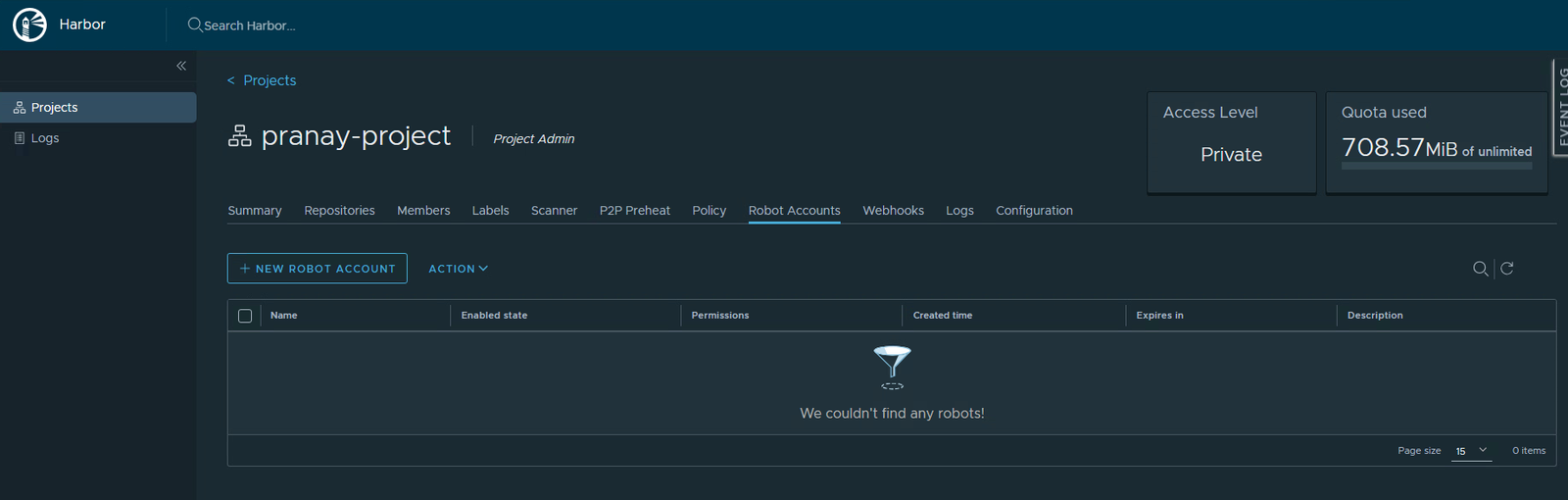
Now build one:
- Click + New Robot Account.
- Give it a name that says what it is for, like
ci-pusher. Set an Expiration time; 30 days is sensible. Click Next.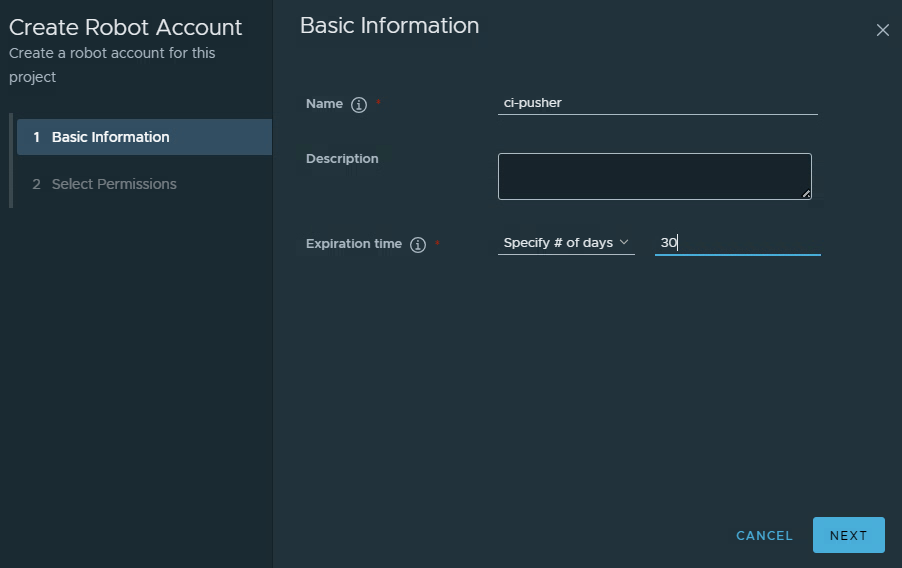
Step 1: name it, and give it an expiry. Robots should not live forever. - On Select Permissions, find the Repository row and tick Pull and Push. Leave everything else unticked. This robot can move images, and nothing more. Click Finish.
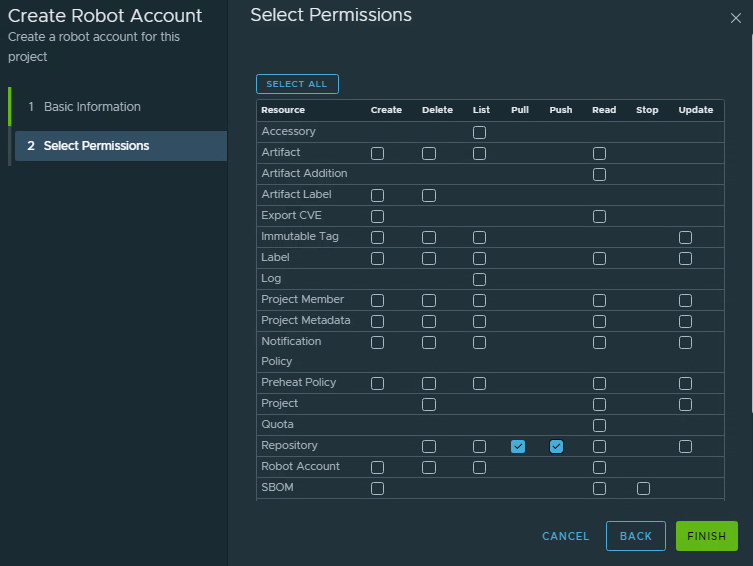
Step 2: give it the least it needs. Pull and Push on Repository, that is all.
Copy the secret right now
Harbor creates the robot and shows you two things: its full name (something like robot$pranay-project+ci-pusher) and its secret. The secret is shown once. Copy it, or click Export to File, before you close this box. There is no way to see it again.
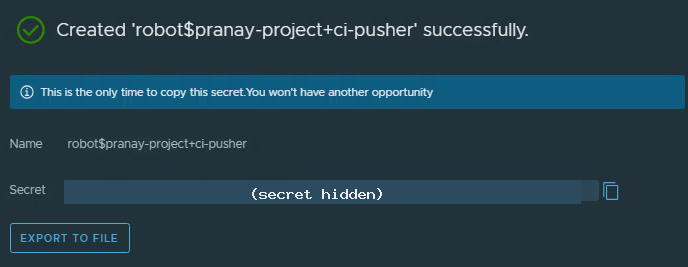
If you miss it, do not worry. You cannot recover the old secret, but you can generate a fresh one for the same robot from the Robot Accounts tab. Treat the secret like a password, because that is exactly what it is.
Use it from a script
Now log in as the robot instead of yourself. The username is the full robot name, and the password is that secret. Use your real registry host where the example shows registry.lab.internal.
./crane auth login registry.lab.internal -u 'robot$pranay-project+ci-pusher' -p 'YOUR_SECRET' --insecureThat login on its own does not prove much, it just stores the credential. The real test is to actually use it. Pull an image while logged in as the robot:
./crane pull registry.lab.internal/pranay-project/hello-world:v1 robot-test.tar --insecureIf that comes down with no error, your robot is working with exactly the Pull and Push rights you gave it, and your own password was never involved.
Find and manage it later
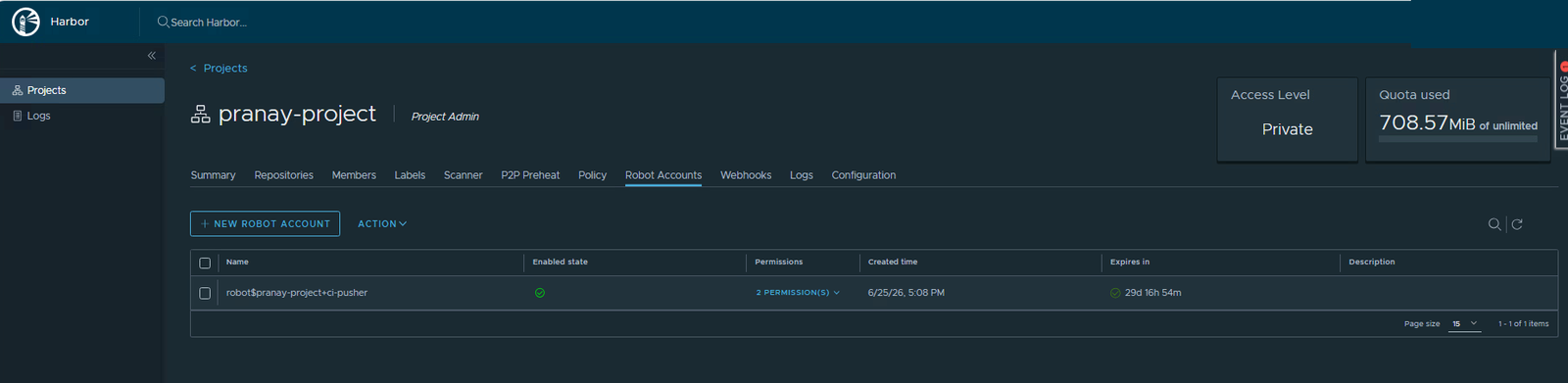
Back on the Robot Accounts tab, your robot is now listed, with its permissions count, when it was created, and how long until it expires.
Delete it when you are done
This is the best habit a robot account teaches. When a robot is no longer needed, or its secret has been on a screen during a demo, get rid of it.
- On the Robot Accounts tab, tick the robot.
- Click Action.
- Choose Delete, or disable it if you only want to pause it.
Throwing away a leaked robot costs you nothing. Throwing away your own leaked password costs you a lot. That difference is the whole reason robot accounts exist.
Quick recap
- Robot accounts are logins for scripts, not people, and you can make them yourself.
- Scope them to the least they need, and give them an expiry.
- The secret appears once. Copy it immediately.
- If one leaks, delete it. Nothing else is affected.
Next part
Part 9: housekeeping. We set tag retention and immutability so your project keeps the versions that matter, drops the ones it does not, and locks the tags that must never change.
Harbor for Beginners, Part 8 of 12. Product names belong to their owners. The host and secret shown are stand-ins, not real values.
About The Author








 DrJha
DrJha