

Images take up disk, and disk runs out. This part is about seeing how much space your project uses, understanding the quota that caps it, and freeing space when you need to. You will even watch the number drop in real time by deleting one big image.
See how much you are using
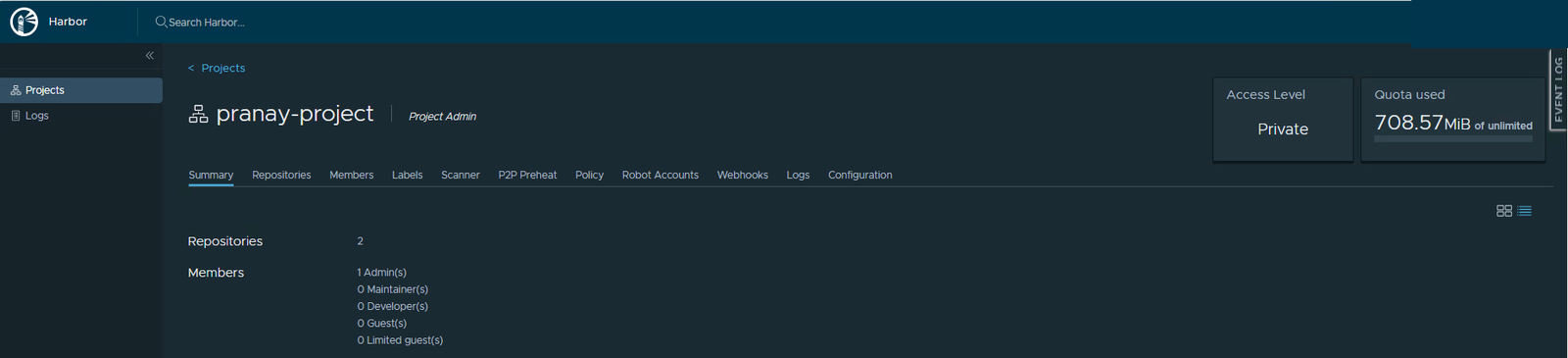
Open your project. The Quota used box at the top-right is the headline number. Here it reads about 708 MiB of unlimited. The phrase of unlimited just means no cap has been set on this project yet.
Where the space goes
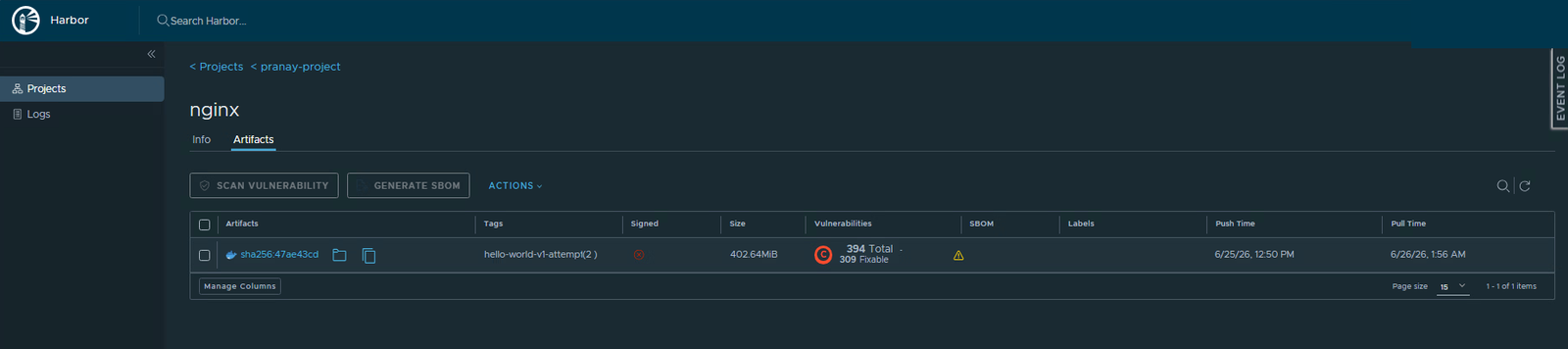
That 708 MiB is not spread evenly. Open a repository and look at the artifact’s Size. The nginx image alone is about 403 MiB, because it carries a whole operating system worth of layers. The tiny hello-world is only a few hundred KiB. Big base images are almost always where your storage goes.
What a quota does
A quota is a ceiling on how much a project may store. When a project has a quota and a push would take it over, Harbor rejects that push with a quota-exceeded error. It is the same gate idea as the vulnerability rule in Part 6, but for space, and it stops one busy project from swallowing the whole registry.
Setting or raising a quota is a system administrator job, done under Administration. As a Project Admin you can see your usage, but you will not have that menu. Knowing the limit exists, and who can change it, is the useful part here.
Free space by deleting
The lever you do control is removing what you no longer need. Watch the quota number respond.
- Open the Repositories tab and click into the repo you want to trim, here, nginx.
- Tick the artifact, open Actions, and choose Delete.
- Confirm. Harbor warns that deleting the artifact also removes every tag pointing at it, which is correct, since they all share one digest.
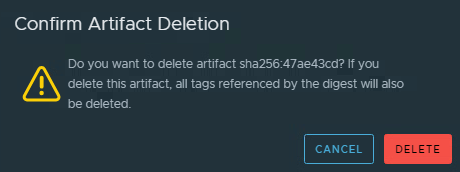
Deleting an artifact removes all the tags that point at it.
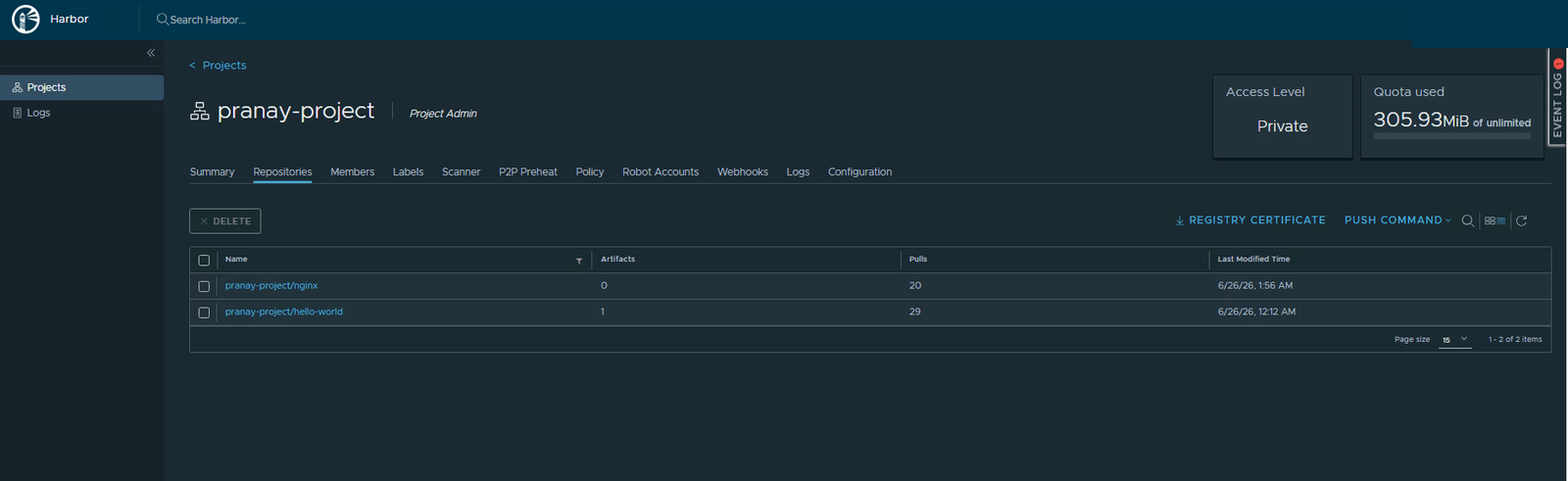
Now look at the Quota used box again. It has dropped from about 708 MiB to 306 MiB, exactly the size of the nginx image you removed, and the nginx repository now shows 0 artifacts.
Deleting versus reclaiming disk
One subtle but important point. Deleting an artifact frees the quota number right away, as you just saw. The actual bytes on disk, though, are reclaimed by a separate step called Garbage Collection, which a system administrator runs for the whole registry. Think of delete as removing the file from the list, and garbage collection as emptying the recycle bin. For your day-to-day, deleting and the retention rules from Part 9 are what keep a project lean.
Quick recap
- The Quota used box shows your storage against the limit.
- Big base images are where the space goes. Check artifact Size to find them.
- A quota caps a project’s storage, but only a system admin can set it.
- Delete unused artifacts to free the quota immediately. Garbage Collection later reclaims the real disk.
Next part
Part 11: connecting registries. We look at replication and the proxy cache, how Harbor mirrors images from another registry and pulls them through on demand.
Harbor for Beginners, Part 10 of 12. Product names belong to their owners.
About The Author








 DrJha
DrJha